The WMS & GIS Clients
Using a plain browser to consume a WMS service is not very user-friendly, but it shows that the WMS interface certainly makes data interoperable. Now if we can use the browser, certainly we can use a sophisticated client application such as a GIS package, for example QGIS or ArcGIS Pro. These applications have built-in functionality to access OGC compliant web services, such as the WMS. What is needed is simply a valid base request URL such as:
__BASEURL__/cgi-bin/mapserv.exe?map=__SYSPATH__/thailand/configWMS.map
The GIS client application will take care of providing the values for all of the other parameters required by a GetCapbilities or a GetMap request.
Adding a WMS to ArcGIS Pro
ArcGIS Pro provides different options to access web services and allows a user to combine different types of services and local data. 1 shows one of those options. To add a WMS service, start ArcGIS Pro a create a new map. From the 'Insert' menu select 'Connections', and then click on 'New WMS Server'. This will bring up the 'Add WMS Server Connection' window where you can type the service URL shown above.


Once the service has been added simply navigate through the Catalog until you see the forest layer and add it to the map.
Adding a WMS to QGIS
QGIS also supports a variety of services and other types of data sources. To add a WMS service, start QGIS, from the 'Browser' panel right-click on the 'WMS/WMTS' option, then click on the 'New Connection...'. This will bring up the 'Create a New WMS/WMTS Connection' window where you can again type the service URL shown above. 2 shows the QGIS interface for adding WMS services.
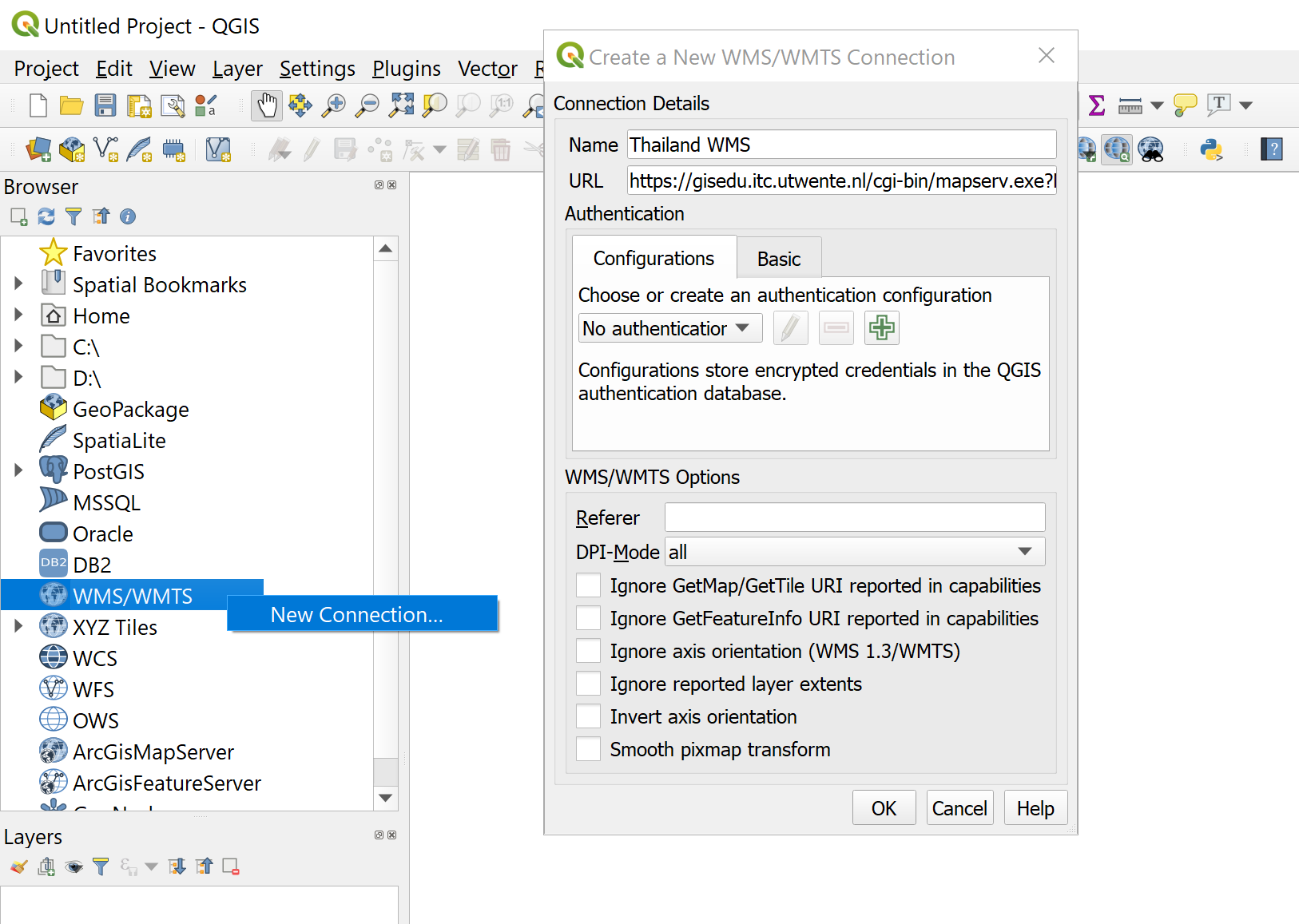

After adding the service, use the Browser to add the forest layer to the map.